
Your reel with an AI avatar (HeyGen + Claude)
One photo of you + your voice = a reel where you talk to the camera, edited automatically, without filming a single shot.
What you need
- A computer (Windows or Mac).
- Claude Code: the Code tab of the Claude app, or Claude in a terminal. It installs the tools and does the editing.
- A HeyGen account (the free plan is enough to start).
- A photo of yourself: facing the camera, well lit, face in sharp focus.
- Your phone to record your voice (optional: HeyGen can also read your text).
Here is what the result looks like:
Step 0 — Install Claude and open your working folder
Claude Code is the assistant that works directly on your computer: it installs the tools, organizes your files and does the editing. You need a paid Claude subscription (Pro or higher).
- Download the Claude app from claude.ai/download, install it and sign in.
- Create an empty folder named Reels, wherever you have space:
- Windows: open File Explorer, go to Documents (or another drive), right-click → New → Folder, and type Reels.
- Mac: open Finder, go to Documents, right-click → New Folder, and type Reels.
- In the Claude app, click the Code tab, then choose your Reels folder as the working folder.
- You now see a message box at the bottom: this is where you will paste the messages from this guide.
Good to know before you start
- You can write to Claude in plain English, just as you would to a person.
- Before installing or changing anything, Claude asks for your permission. Read the request, then click Allow if it matches what you asked for.
- If an error message appears, don't panic: copy it and paste it into Claude with "Fix this error".
- Always keep your Reels folder open in Claude Code when you work on your reels.
The rest of the guide is for free accounts
Create your free account to read the rest. It's free, and takes less than a minute with Google.
Coming up next:
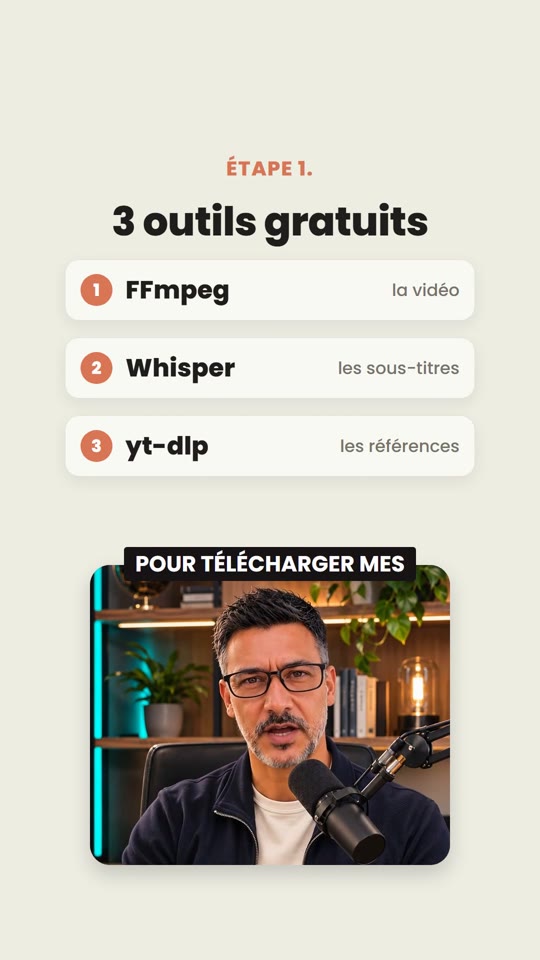
- Step 1 — Install the 3 free tools
- Step 2 — Create the 3 folders
- Step 3 — Create your style sheet
- Step 4 — Write the script and record your voice
- Step 5 — Animate your photo with HeyGen (free plan)
- Step 6 — Claude does the editing
- Step 7 — Add music and publish
- Pitfalls to avoid
- For your next reel